





To reset / recover the administrator password, we recommend using the KON-BOOT method
Below is another step-by-step guide to recovering (changing / resetting) the administrator password using the Elcomsoft System Recovery bootable ISO image. This method is considerably more complex and intended for advanced users.
Important: If your VDS uses Virtio drivers (almost all new Windows 2008 VDSs from our OS templates), change the HDD controller type to "default" in the virtual machine settings. Otherwise the LiveCD will "not see" the server's hard disk and nothing will work. Don't forget to change the controller type back after resetting the password.
Step 1. Go to the server control panel and attach the ISO image "Elcomsoft System Recovery Pro". Instructions and answers to questions about working with ISO images are here
Step 2. Open the VNC console and initiate a reboot of your VDS.
Step 3. To boot from the ISO, press F12 right after the message "Press F12 for boot menu" appears, then enter the number of the DVD/CD option (usually 1), and then be sure to press Space or any other key immediately after the VDS starts booting (when the prompt "Press any key to boot from CD...." appears), otherwise the server will continue booting from the hard disk! 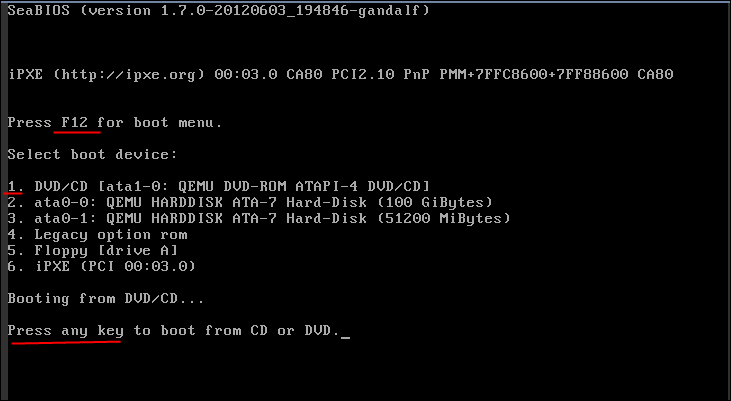
Step 4. Wait until the server boots from the attached ISO image, then select "I accept the agreement" and click "OK":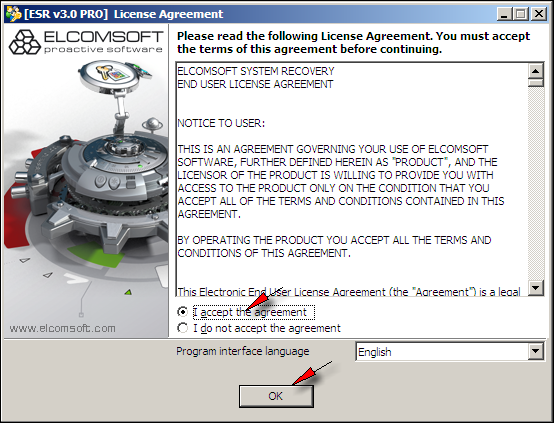
Step 5. In the next window, make sure your server's HDD is in the list of disks. If there are no HDDs of a suitable size, you most likely did not change the HDD controller type as described at the beginning of this guide, and the system "does not see" your disks. If the disks are listed, click "Next":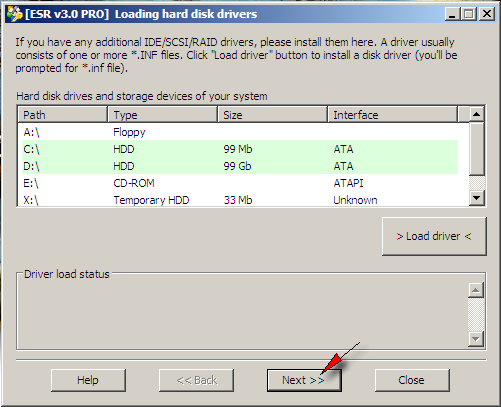
Step 6. Next, select "Work with local computer accounts" and "Change account password and properties", then "Next":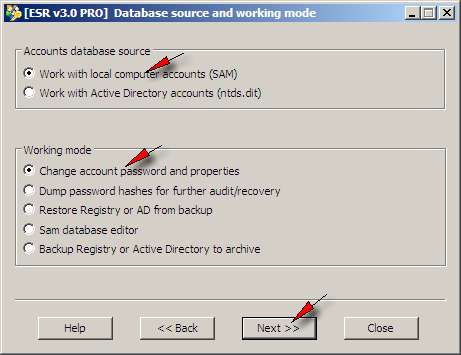
Step 7. Make sure the Windows folder has been detected. If you have several systems, you can select the right one manually (note that the drive letter will be different!); otherwise leave "Auto selection". Clear the "Test short and simple...." checkbox, then click "Next":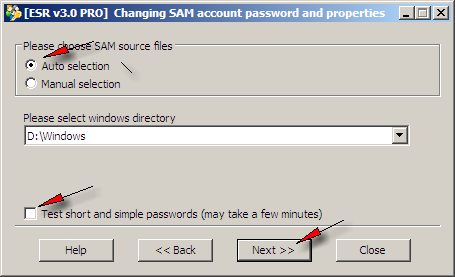
Step 8. A list of user accounts on the server opens. Double-click administrator (or any other account whose password you want to change):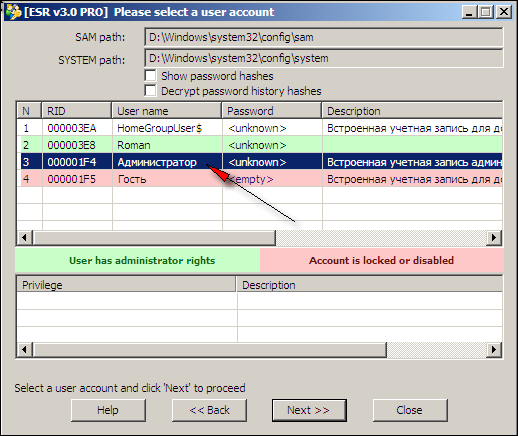
Step 9. In the window that opens, enter the new password (the password must be complex! If you set a simple password, you will most likely be unable to log in!). If "only digits are typed", check that the English keyboard layout, not Russian, is active on your(!) computer. Make sure "Administrator account" is checked and "Account is disabled" and "Account is locked out" are NOT checked. Click "Apply"; you will then be offered to save a backup copy of the SAM file (optional, you can answer "No"):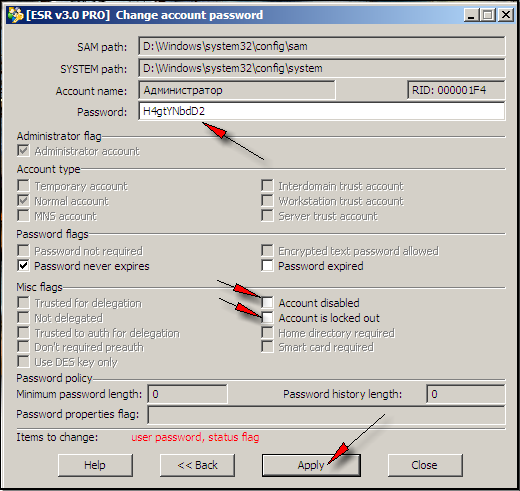
Step 10. Confirm that you understand access to all personal certificates, encrypted files, etc. will be lost, and click "Yes":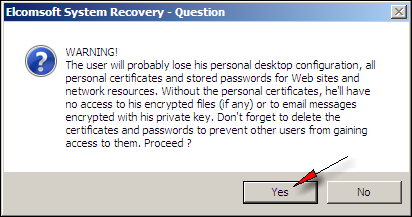
Step 11. A message appears saying the user data has been changed and asking whether you want to restart the system. Answer "Yes" and the VDS will reboot into the normal system: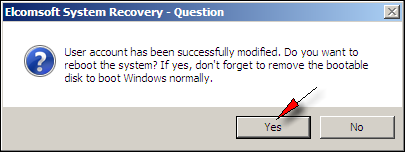
Step 12. Once booting is complete, you can log in with the new password. Don't forget to detach the ISO image in the control panel and restore the HDD controller mode if you changed it.
Note: If something doesn't work or goes wrong, you can open a paid password recovery ticket with technical support
- 172 Users Found This Useful
