





Installing Linux on a VDS
Linux can be installed either manually (by booting from an installation ISO image) or semi-automatically (using the installimage script in the Linux Rescue system).
Installing with the installimage script (recommended):
1. Preparing the VDS for a Linux installation
1.1 Before a "clean" Linux install, we recommend reinstalling the VDS "without a template".
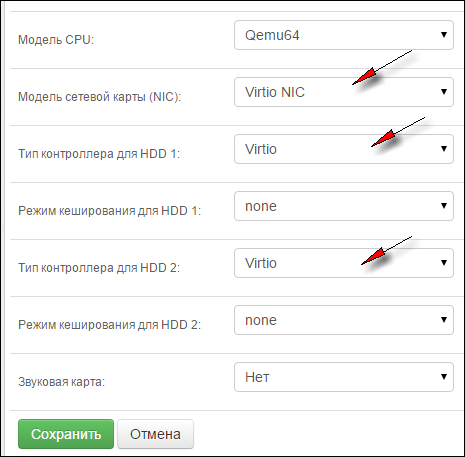
1.2 After reinstalling "without a template", open the virtual machine "Settings" and select the "Virtio" controller type for SSD/HDD disks, as well as the Virtio Nic network card type. This step is optional, but virtio drivers significantly improve virtual machine performance. Example settings are shown below:
2. Boot the server into Linux Rescue
3. Connect to the server via SSH (recommended) or log in as root directly in VNC. Use your VNC console password as the root password.
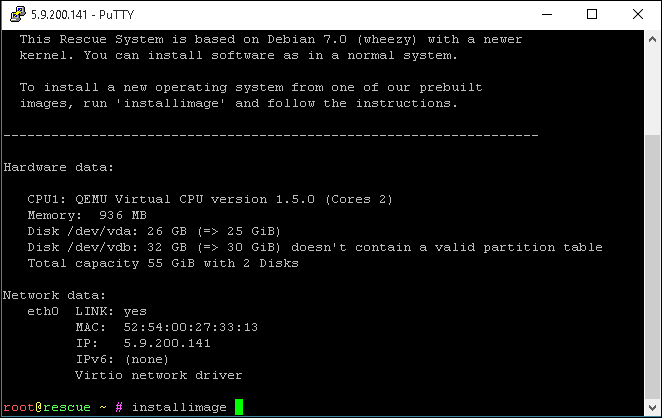
4. Enter the installimage command and press Enter:
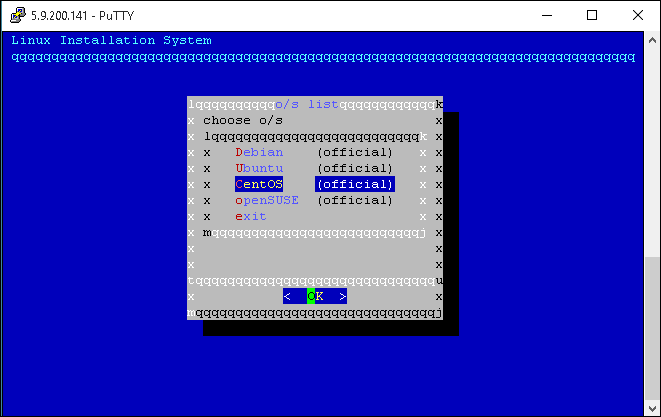
5. In the menu that appears, select the operating system you need (Debian, CentOS, Ubuntu or OpenSuse):
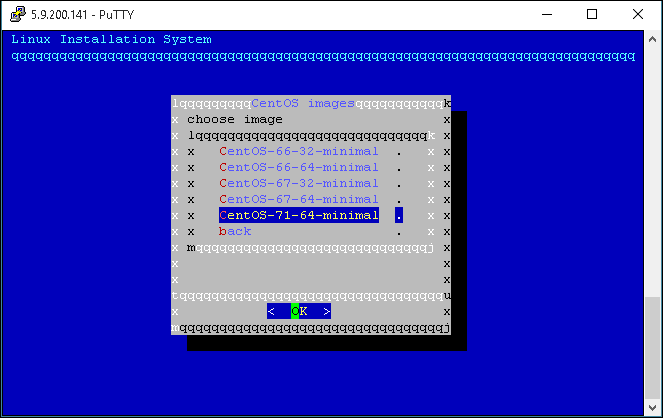
5.2 Then select the appropriate version and architecture (32-bit or 64-bit). For some distributions only 64-bit versions may be available:
5.3 A configuration editor window will open where you can change some installation parameters (hostname, disk partitioning, etc.). Only make changes if you understand what you are doing; otherwise leave everything as is. Press F10 to continue the installation
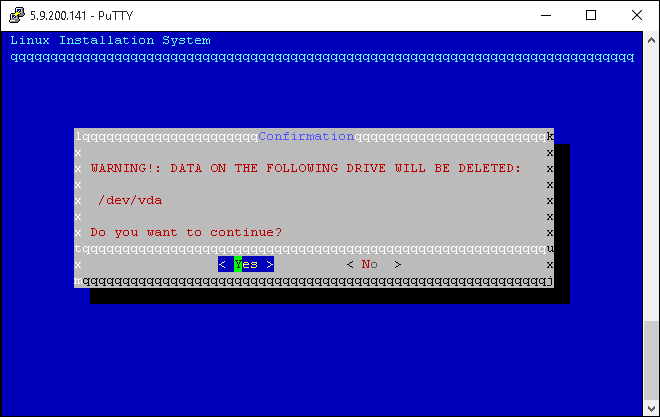
6. Confirm that you agree to all data on the server being deleted during the installation:
7. The OS installation will begin:
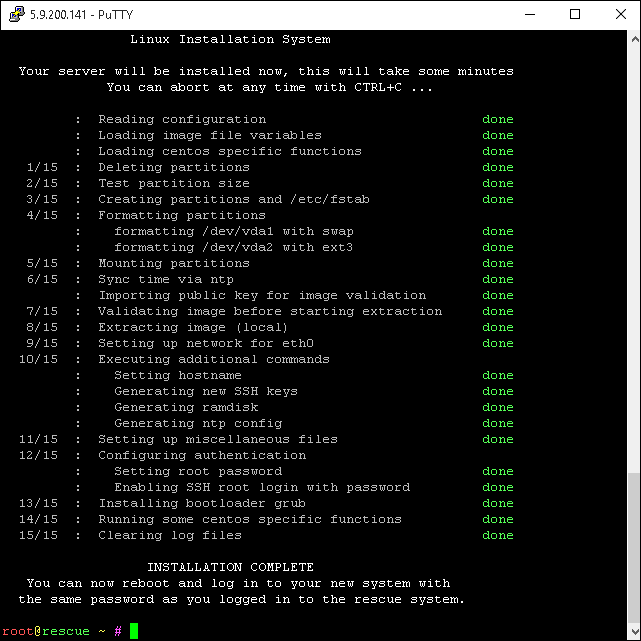
8. Once the OS has been installed successfully, reboot the server (type reboot or press Ctrl+Alt+Del in the VNC console) to exit Rescue and boot into the installed OS.
Important: the installed OS will use the same root password that the Rescue system had before you ran installimage!
Installing with the installimage script (recommended):
1. Preparing the VDS for a Linux installation
1.1 Before a "clean" Linux install, we recommend reinstalling the VDS "without a template".
1.2 After reinstalling "without a template", open the virtual machine "Settings" and select the "Virtio" controller type for SSD/HDD disks, as well as the Virtio Nic network card type. This step is optional, but virtio drivers significantly improve virtual machine performance. Example settings are shown below:
2. Boot the server into Linux Rescue
3. Connect to the server via SSH (recommended) or log in as root directly in VNC. Use your VNC console password as the root password.
4. Enter the installimage command and press Enter:
5. In the menu that appears, select the operating system you need (Debian, CentOS, Ubuntu or OpenSuse):
5.2 Then select the appropriate version and architecture (32-bit or 64-bit). For some distributions only 64-bit versions may be available:
5.3 A configuration editor window will open where you can change some installation parameters (hostname, disk partitioning, etc.). Only make changes if you understand what you are doing; otherwise leave everything as is. Press F10 to continue the installation
6. Confirm that you agree to all data on the server being deleted during the installation:
7. The OS installation will begin:
8. Once the OS has been installed successfully, reboot the server (type reboot or press Ctrl+Alt+Del in the VNC console) to exit Rescue and boot into the installed OS.
Important: the installed OS will use the same root password that the Rescue system had before you ran installimage!
- 180 Users Found This Useful
Related Articles
How to boot your server into Linux Rescue
Linux Rescue is a special operating system based on Debian Linux with a modified kernel. It is booted on your VDS over the network (via iPXE network boot) and gives you access to the server's disks so you can perform various operations. Rescue...
