





If you have just finished a manual OS installation (not from a template in the client area) and cannot connect to the server via Remote Desktop, you most likely forgot to allow remote connections. To allow them, do the following:
1. Connect to the VPS with a VNC client (see how to do this here: https://client.vpsnow.com.ua/knowledgebase.php?action=displayarticle&id=60).
2. On the VPS, click Start, right-click Computer and select Properties from the drop-down menu.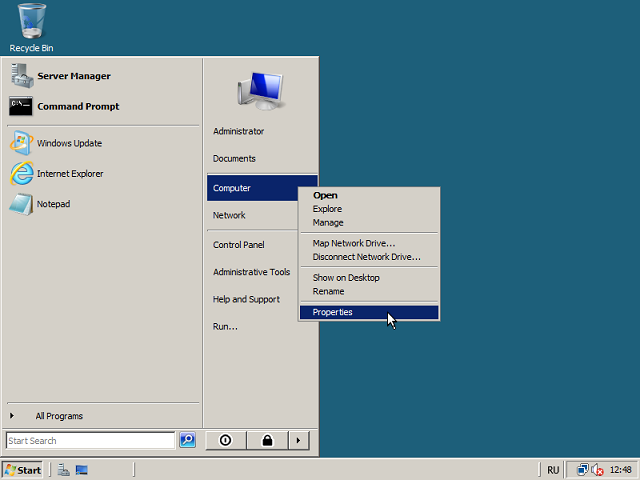
3. In the window that opens, select the Remote Settings tab.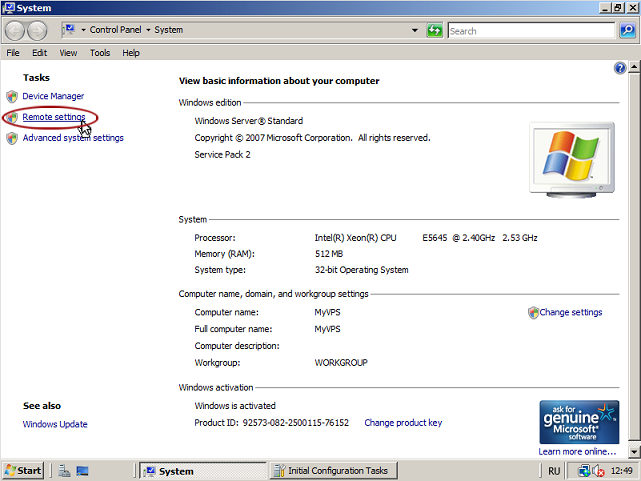
4. In the next window, select Allow connections from computers running any version of Remote Desktop (less secure) :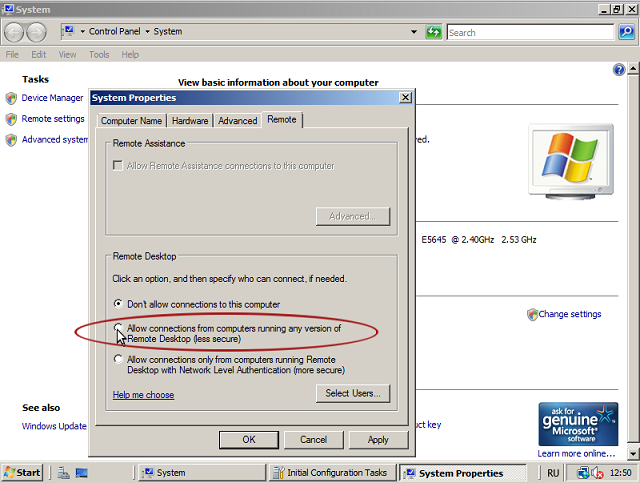
5. Click «OK» in the information window warning that a Remote Desktop exception will be added to the firewall settings.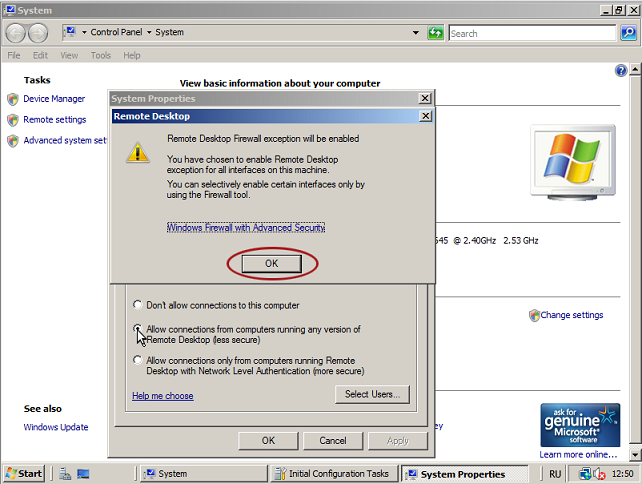
6. Click «OK» to apply the settings: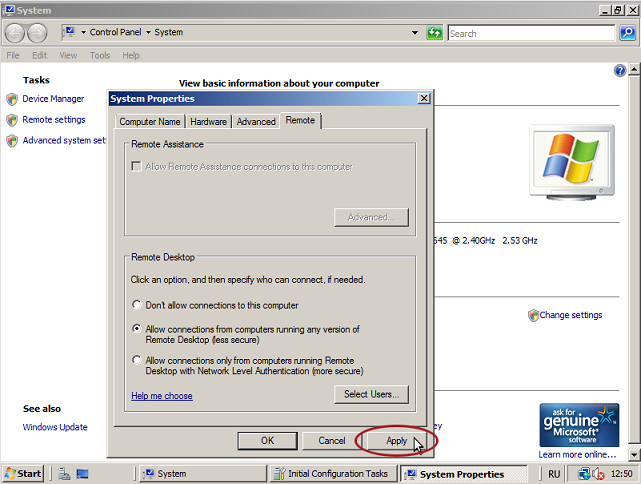
You can now connect to the VPS via Remote Desktop.
- 174 Users Found This Useful
