





How to change the Remote Desktop screen resolution
To change the screen resolution of Remote Desktop, do the following in the RDP connection settings:
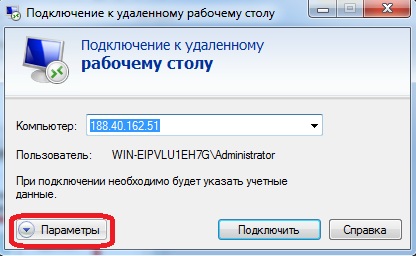
1. After launching the Remote Desktop Connection client, click Show Options in the window that appears (marked in red in the screenshot below).
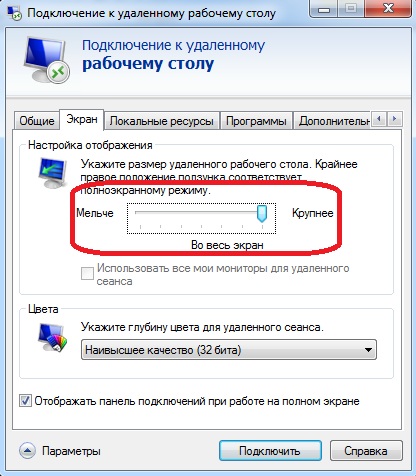
2. Then go to the Display tab and move the slider (marked in red in the screenshot below) to change the resolution. After that, you can work with Remote Desktop as usual.
Please note that the desktop resolution on the server cannot be higher than the resolution of your computer.
1. After launching the Remote Desktop Connection client, click Show Options in the window that appears (marked in red in the screenshot below).
2. Then go to the Display tab and move the slider (marked in red in the screenshot below) to change the resolution. After that, you can work with Remote Desktop as usual.
Please note that the desktop resolution on the server cannot be higher than the resolution of your computer.
- 343 Users Found This Useful
Related Articles
How do I copy files to my server via the clipboard?
Files are copied between your computer and the remote server via the clipboard. For this to work, you need to enable the corresponding local resources in your RDP client settings:
1. Launch the RDP client on your computer: "Start" -> "Run"...
How to increase or disable the inactivity timeout
By default, when you work with a Windows VDS via Remote Desktop and do not perform any actions on the server for more than 10 minutes, the server turns on a screensaver, and you have to enter your password again to dismiss it. This is done for...
Terminal server
By default, Remote Desktop access to Windows Server 2003 / 2008 works in administration mode, which allows only 2 concurrent terminal sessions (for server management). This is a Microsoft licensing restriction for all server operating systems.If...
No more than 2 people can connect to the server via Remote Desktop at the same time
To allow more than two people to work on the server at the same time, you need to install a terminal server on it.
How do I enable sound when working via Remote Desktop?
If you want sound to work when connecting via Remote Desktop (i.e. sound played on the server is transferred to your computer), first of all you need to enable the corresponding option in the RDP client settings. To do this, after launching the...
