





Connecting a local printer to the server
To be able to print from the remote server to your local printer, you need to configure the following.
1. First, your printer must be turned on, and you should check that it prints correctly from your local machine.
2. You need to install the drivers for your printer on the server (for detailed instructions, refer to the user manual that came with the printer, your administrator or search engines).
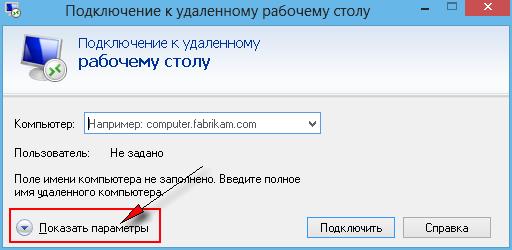
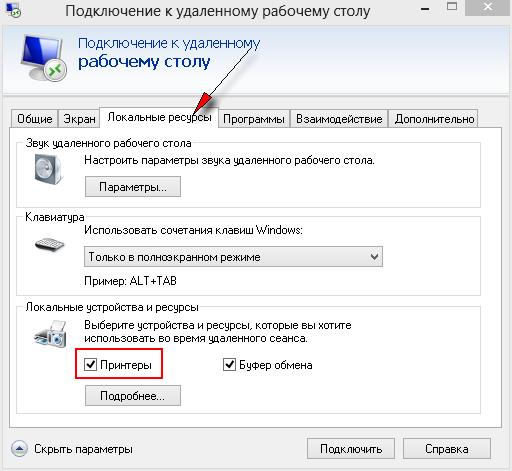
3. Next, click "Show Options" in the Remote Desktop Connection window, and on the "Local Resources" tab, check "Printers". After that, you can continue connecting to your server.
4. If the driver has been installed correctly, your local printer should appear on your server. You can check this as follows: go to Start -> Devices and Printers. In the window that opens, right-click and select Refresh. Your local printer should then be displayed.
5. When printing from the server, make sure your local printer is selected in the print settings of the program you are printing from.
If you run into problems installing the driver (no driver for the required version, the driver will not install, does not detect or incorrectly detects the printer, prints incorrectly, etc.), contact the printer manufacturer to get updated driver versions and help with resolving the issues.
You can get more information about installing, configuring and using the printer from your system administrator or find it using search engines.
1. First, your printer must be turned on, and you should check that it prints correctly from your local machine.
2. You need to install the drivers for your printer on the server (for detailed instructions, refer to the user manual that came with the printer, your administrator or search engines).
3. Next, click "Show Options" in the Remote Desktop Connection window, and on the "Local Resources" tab, check "Printers". After that, you can continue connecting to your server.
4. If the driver has been installed correctly, your local printer should appear on your server. You can check this as follows: go to Start -> Devices and Printers. In the window that opens, right-click and select Refresh. Your local printer should then be displayed.
5. When printing from the server, make sure your local printer is selected in the print settings of the program you are printing from.
If you run into problems installing the driver (no driver for the required version, the driver will not install, does not detect or incorrectly detects the printer, prints incorrectly, etc.), contact the printer manufacturer to get updated driver versions and help with resolving the issues.
You can get more information about installing, configuring and using the printer from your system administrator or find it using search engines.
- 138 Users Found This Useful
Related Articles
How do I copy files to my server via the clipboard?
Files are copied between your computer and the remote server via the clipboard. For this to work, you need to enable the corresponding local resources in your RDP client settings:
1. Launch the RDP client on your computer: "Start" -> "Run"...
How to increase or disable the inactivity timeout
By default, when you work with a Windows VDS via Remote Desktop and do not perform any actions on the server for more than 10 minutes, the server turns on a screensaver, and you have to enter your password again to dismiss it. This is done for...
Terminal server
By default, Remote Desktop access to Windows Server 2003 / 2008 works in administration mode, which allows only 2 concurrent terminal sessions (for server management). This is a Microsoft licensing restriction for all server operating systems.If...
No more than 2 people can connect to the server via Remote Desktop at the same time
To allow more than two people to work on the server at the same time, you need to install a terminal server on it.
How do I enable sound when working via Remote Desktop?
If you want sound to work when connecting via Remote Desktop (i.e. sound played on the server is transferred to your computer), first of all you need to enable the corresponding option in the RDP client settings. To do this, after launching the...
