





You connect to Remote Desktop using an RDP client. The RDP (Remote Desktop Protocol) client is built into all versions of Windows starting with Windows XP. On Linux you can use rdesktop, FreeRDP or Remmina; on Android, install the RD Client app by Microsoft; on iPhone we recommend the built-in RDP client or the alternative iTap RDP; on Mac OS you need to install the updated Microsoft Remote Desktop.
To launch the RDP client on Windows, do the following on your own computer:
1. Open the "Start" menu -> select "Run...":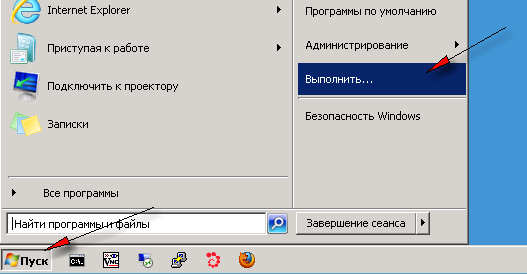
1.1. If there is no "Run..." item in your "Start" menu, you can try opening it with the key combination Win + R (Win is the key with the Windows logo, usually located to the left of the space bar, next to Ctrl and Alt).
If there is no "Run" item in your "Start" menu and the Win + R combination does not work either (or you do not know where the WIN key is on your keyboard), try typing mstsc in the search box of the "Start" menu (where it says "Search programs and files"), or manually find and run the file c:\windows\system32\mstsc.exe
2. In the window that appears, type mstsc.exe and click "OK":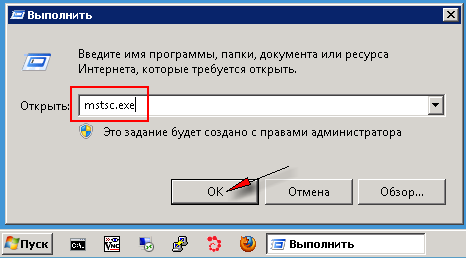
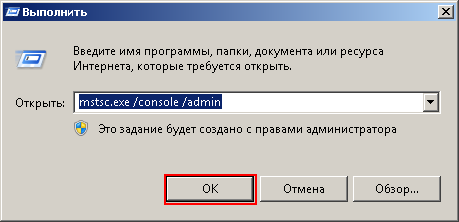
If you want to connect to the console session (usually this is not necessary; it is relevant when working with Windows Server 2003 (so that you always connect to the same session and avoid the problem of programs being "launched twice"), when there are terminal server licensing problems, etc.), add these parameters: mstsc.exe /console /admin and click "OK".
3. Enter the IP address of your server (it is provided in the VDS activation email along with the username and password) in the "Computer" field and click "Connect":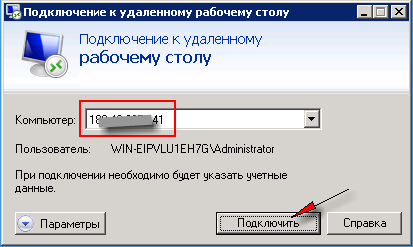
4. If a window saying "The identity of the remote computer cannot be verified" appears, check "Don't ask me again for connections to this computer" and click "Yes":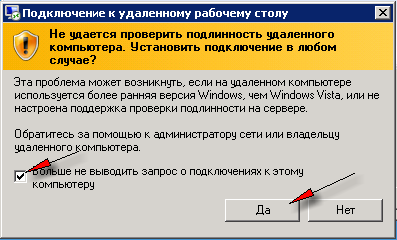
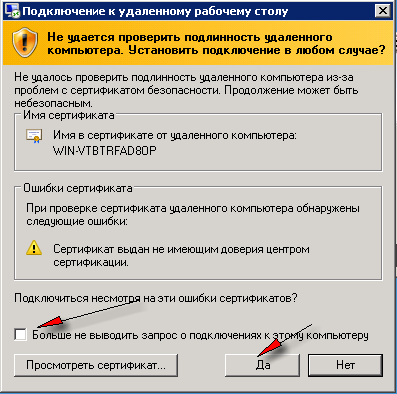
5. Carefully enter your password and check "Remember my credentials":
Important: if you copy and paste the password, be sure to paste it only with the CTRL+V shortcut; pasting the password with the mouse does not work correctly!
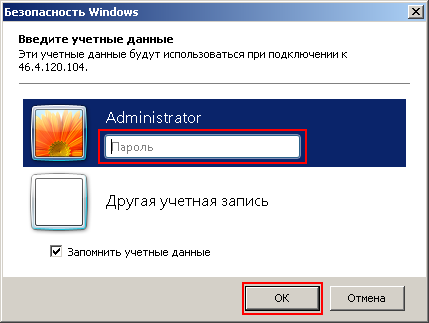
5.1. If the "Windows Security" window does not appear (with older RDP clients), enter the username and password directly in the Remote Desktop session that opens: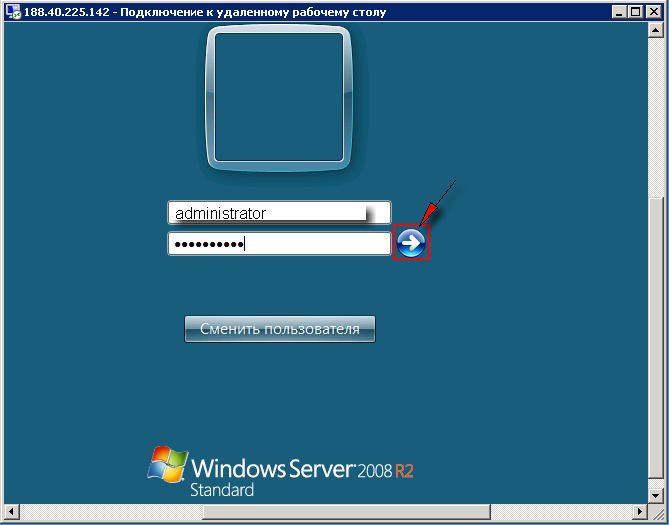
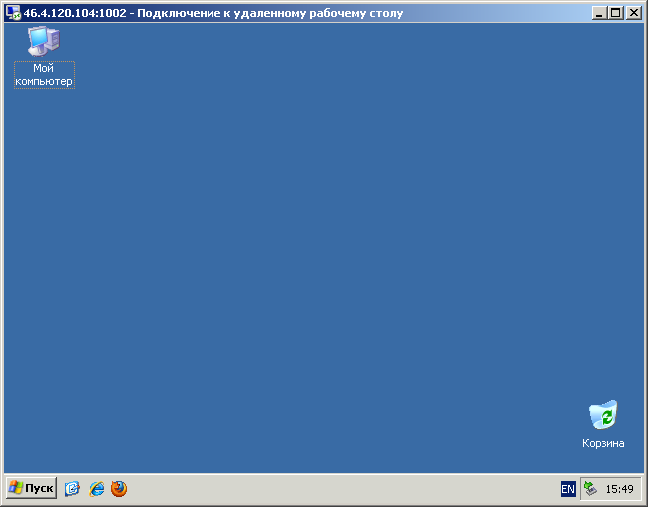
5.2. After you click "OK", if the password was entered correctly, you will be connected to your server and will see its remote desktop in front of you.
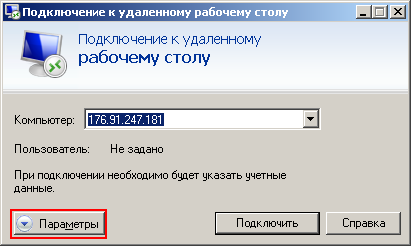
6. If the connection attempt fails with the error "The identity of the remote computer cannot be verified", open the RDP client's "Show Options":
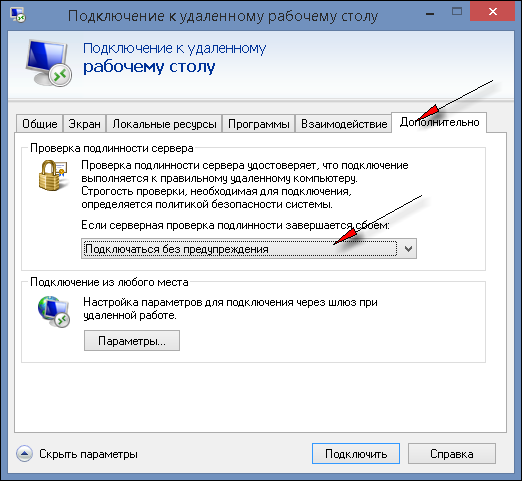
and on the "Advanced" tab set the "Server authentication" option to "Connect and don't warn me":
- 507 Users Found This Useful
