





Q: What is the VNC console? What is it for?
Q: How do I enable VNC access to my server?
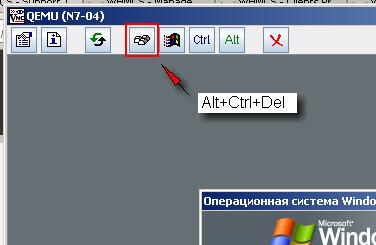
Q: How do I send ALT+CTRL+DEL to the server?
A: Use the special button at the top of the VNC client:
Q: I can't enter my password: I press the keys, but nothing gets typed. What should I do?
Q: Only digits "work" when typing in VNC; when I press letters, nothing gets "pressed" on the server
A: This happens when the Russian language (Russian keyboard layout) is active on your computer. For VNC input to work correctly, the English language (keyboard layout) must be active on your computer. Switch it to English (preferably with the mouse, via the icon on the taskbar), and VNC input will work. Once again, please note: this is about your own computer!
Q: What's wrong with the mouse in VNC? It "lags", moves in jerks, and I can't hit a button!
A: This happens when the software on your VDS does not support USB input devices or does not work with them properly. You can either use keyboard shortcuts (tab, enter, space, alt+key, etc.) or get used to the "lagging" mouse: with a "jerk" (a sharper mouse movement) you can "nudge" the cursor into the right area and then "hit" the button with a slower, smoother movement. Remember: VNC is emergency access for solving problems, not a tool for everyday remote work.
Q: How do I copy files to the server via VNC?
A: Unfortunately, VNC does not support file copying. Use Remote Desktop (RDP) or other methods instead
Q: But I only have VNC access to the server; Remote Desktop and other ways of copying files do not work.
A: There is no way to copy files through VNC, sorry. But if the internet works on your server, you can transfer files through a file-sharing service (for example, Yandex.Disk, zalil.ru, rghost.ru and the like)
Q: I pressed something and now VNC shows a black window saying "Serial0 console". Help!
A: To switch back to normal mode, press alt+ctrl+1, but this only works in the standalone TightVNC client; such key combinations do not work in the built-in VNC. Download TightVNC, connect to VNC with your access details (the VNC IP and password are shown in the client area), and then press alt+ctrl+1.
Q: I shut down my server and the VNC window disappeared!
A: VNC works only while the server is running. Start it from the client area and activate the VNC console again.
Q: I can't get anything to work. Can you do it for me?
A: Yes, we can. 15 minutes of work (the minimum request) costs 5 EUR (except for the Serial0 console "problem").
Q: What should I do if the server does not boot, freezes completely, keeps rebooting in a loop, shows a BSOD, etc.?
A: Unfortunately, in this case we cannot help you either. You can try to:
1. boot the server from Alkid Live DVD (REANIMATOR), run a disk check with automatic error fixing, and then try booting the server again
2. use other LiveCDs or the Windows Recovery Console (if you know what it is, how to use it and what to do) to try to fix the problem or save important data from the server.
3. simply reinstall your VDS (simple, fast and free: a universal fix for any software problems and for your own mistakes, but all data on the server will be lost),
4. after the reinstallation, we can temporarily attach your old disk image to the new VDS so that you can try to copy the files you need from it.
- 223 Users Found This Useful
