





If you want sound to work when connecting via Remote Desktop (i.e. sound played on the server is transferred to your computer), first of all you need to enable the corresponding option in the RDP client settings. To do this, after launching the RDP client:
1. Click the "Show Options" button
2. Go to the "Local Resources" tab
3. Under "Remote audio", click the "Settings" button
4. In the window that opens, select "Play on this computer"
5. Save the changes.
Screenshot for reference: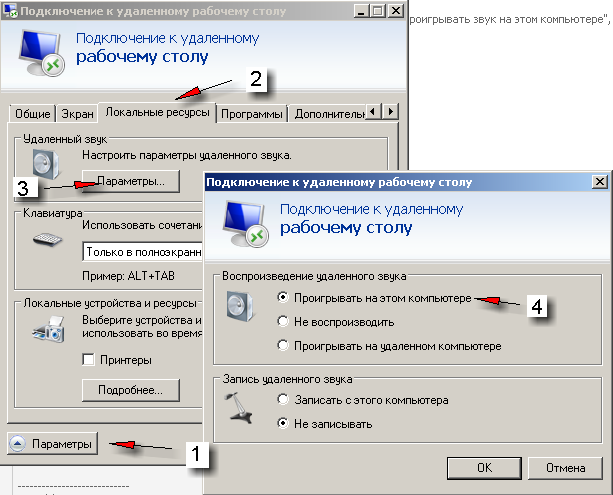
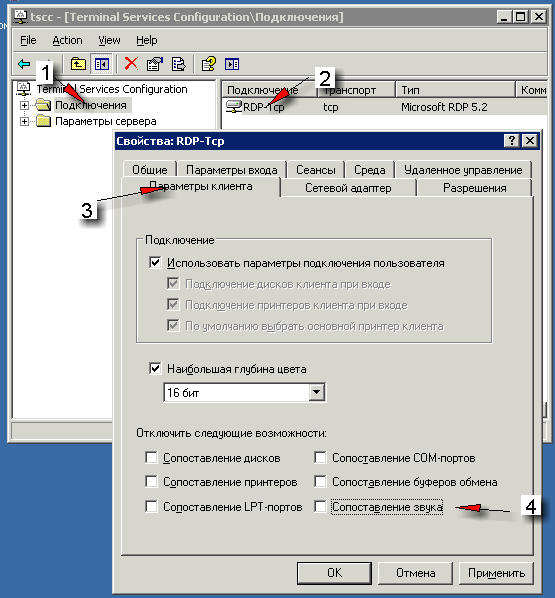
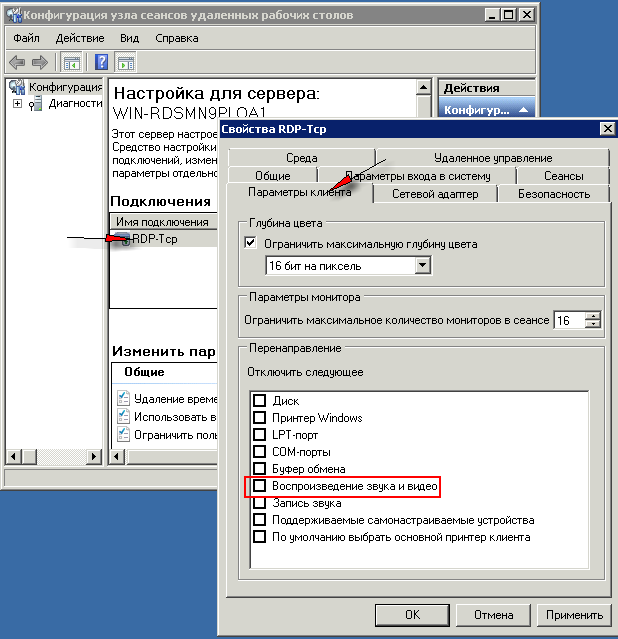
However, enabling audio redirection on the client side alone is not enough, because by default Windows Server operating systems disable audio mapping in the terminal server settings. To change the terminal server settings (allow audio mapping), do the following:
In Windows Server 2003: "Start" -> "Administrative Tools" -> "Terminal Services Configuration" -> "Connections" (on the left) -> right(!)-click "RDP-Tcp" on the right -> in the menu that appears, "Properties" -> "Client Settings" tab -> clear(!) the "Audio mapping" checkbox -> "OK".
In Windows Server 2008: "Start" -> "Administrative Tools" ->"Remote Desktop Services" -> "Remote Desktop Session Host Configuration" -> right(!)-click "RDP-Tcp" -> in the menu that appears, "Properties" -> "Client Settings" tab -> clear(!) the "Audio and video playback" checkbox -> "OK".
Next, check that the Windows Audio service is running:
"Start" - "Administrative Tools" - "Services", find "Windows Audio" in the list and double-click it. In the service settings, set "Startup type" to "Automatic", click "Apply", and then you can start the service right away with the corresponding button:
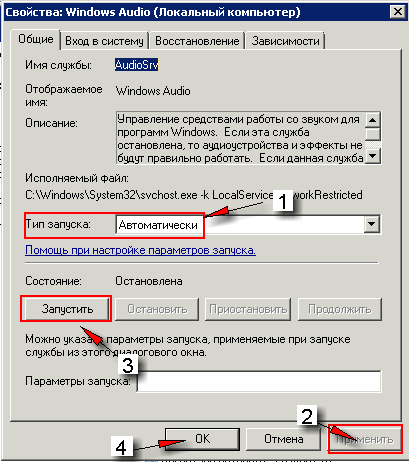
Important: if the Windows Audio service does not start, make sure the following services are enabled and running (in this exact order!): "Power", "Windows Audio Endpoint Builder", "Multimedia Class Scheduler" and "Remote Procedure Call (RPC)". Then try starting the "Windows Audio" service again.
For all changes to take effect, you need to end the current RDP session ("Start" -> "Log off" or "Start" -> "Run" -> "Logoff" -> "OK") and then reconnect to your server's remote desktop. If you did everything correctly, all sound played on the VDS will be played on your computer.
If sound still does not work (the system has no available audio devices / audio output devices), you are doing something wrong; check everything again. Having our administrator check or apply these settings on your server costs 5 EUR. In that case you will only need to enable audio redirection in your RDP client settings.
Note: unfortunately, this method will not help with programs that require a physical sound card (device). New VDSs usually already have a virtual sound card attached; for older VDSs you can check / attach it in the VDS settings. We give no guarantees that it will work or how it will work: in this case the sound problem lies in your software, not in the VDS. A sound card is a physical audio output device and is therefore completely useless on a remote server (whether physical or virtual). No software processing of audio requires a sound card, just as you do not need a printer to type text in Microsoft Word. If a program still insists on having one, then, by and large, it is not designed to run on a remote server and is intended for local use. In view of the above, please do not contact technical support about virtual sound cards and programs that use them, their quality of operation, etc. — we do not provide consultations on this matter.
- 318 Users Found This Useful
