





Important: The new password must be at least 10 characters long and contain uppercase and lowercase letters plus digits; otherwise you will get an error saying the password does not meet the security requirements.
Option 1.
To change the administrator password (for the user administrator):
- connect to your server via Remote Desktop
- press alt + ctrl + END (once again, note: it must be END, not DEL!).
- in the window that appears, click "Change a password"
- enter your old password, the new password and its confirmation in the corresponding fields
- click OK
If you get the error "the domain is not available" when changing the password, make sure the "User name" field contains only administrator!
Option 2.
You can also change the password from the Control Panel. Go to "Start" -> "Windows Security" -> "Change a password".
Option 3.
Another way to change the administrator password is from the command line:
Connect to the server via Remote Desktop, then click "Start" - "Run" - "cmd" - "OK", type "net user administrator f28GfErt3" in the console window that opens and press enter (in this example, the administrator password is set to f28GfErt3. Of course, you need to use your own password instead!). The response "The command completed successfully" means that the password has been changed.
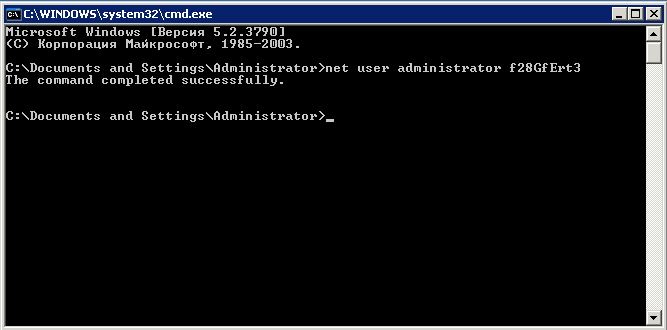
Your password is now changed, and the next time you connect via Remote Desktop you will need to use the new password!
Please note: if you have set up automatic logon to start programs automatically when the server boots, you need to repeat that setup, because automatic logon will stop working after the password change!
Warning!
Using simple passwords can (and most likely will!) lead to your server being hacked, which will cause you a lot of trouble and may have serious consequences. Use only strong passwords and do not reuse the same password on different servers. Change your password immediately if you suspect that someone else may know it, or if you have connected from a public computer. Remember that you alone are responsible for any consequences, so take the security of your server seriously!
A tip on how to easily create and remember a strong password:
Take one or more short words in your native language, for example "ВеликобританиЯ", "Люблю_Лето" or "ХренВамВсем",
add a few digits or an exclamation mark at the end, for example 73
Type the resulting combination with the English keyboard layout, and you have a strong password that is easy to remember!
Examples:
ВеликобританиЯ78 -> Dtkbrj,hbnfybZ78
Люблю_Лето! -> K.k,._Ktnj43!
ХренВамВсем814 -> {htyDfvDctv814
Search index: password pass change reset set own custom assign modify replace admin administrator
- 157 Users Found This Useful
