





Let's look at how a server starts up, so that what follows is easier to understand:
1) you turn the server's "power" on or restart it using the "reset" function
2) the server powers on and the OS boots
!--> at this point the server does not start anything else and waits for a user to connect to it via Remote Desktop <--!
3) once the user connects via Remote Desktop, a terminal session starts
4) when the terminal session starts, the programs in the "Startup" folder of the logged-in user are launched.
So, as you can see, simply adding the programs you need to the Startup folder is not enough, because programs in this folder only start after the user logs on (after the terminal session starts).
To make programs in the Startup folder start automatically, you need to configure the terminal session to start automatically (auto logon) on the server. To do this, run the following on the server:
"Start" -> "Run" -> control userpasswords2 -> OK
The following window will open:
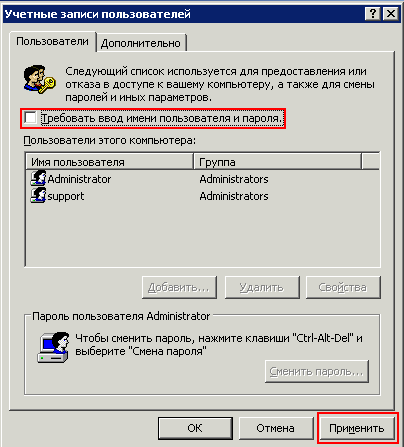
Clear the "Users must enter a user name and password to use this computer" check box
Click "Apply"
Enter the user name administrator and its current password twice. Make sure you enter the password correctly, otherwise auto logon will not work!
Then click "OK".
Now, after the OS boots (step 2), the system will log on automatically with the credentials you specified, and the terminal session and all programs in the Startup folder will start.
Please note that the terminal session runs as the "console session", so to connect to it you must specify the /admin /console parameters in your RDP connection settings! Learn more
If these parameters are not specified, a new terminal session will be started, which will cause the Startup programs to be launched again, and so on!
Warning: if you change the administrator password later, you need to repeat the auto logon setup (clear/select the "Users must enter a user name and password to use this computer" check box and then enter the new password for auto logon), otherwise auto logon will stop working!
- 206 Users Found This Useful
