





By default, when you work with a Windows VDS via Remote Desktop and do not perform any actions on the server for more than 10 minutes, the server turns on a screensaver, and you have to enter your password again to dismiss it. This is done for security reasons.
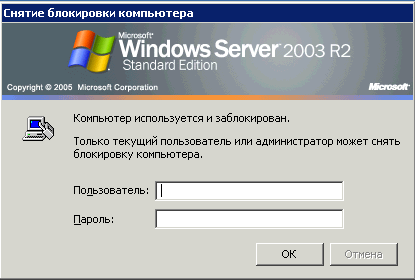
If this is inconvenient for you, you can increase the timeout or disable the password prompt after the screensaver starts altogether:
Windows Server 2008
"Start" -> "Control Panel" -> "Appearance" -> "Change screen saver" (under "Display")
Windows Server 2003
Right-click an empty area of the desktop - "Properties" - go to the "Screen Saver" tab
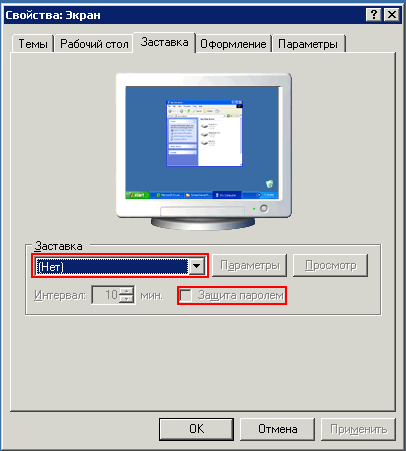
Here you can disable the screensaver, choose the wait time before it starts, and choose whether a password is required to unlock the session (the "On resume, display logon screen" option).
- 157 Users Found This Useful
