





Files are copied between your computer and the remote server via the clipboard. For this to work, you need to enable the corresponding local resources in your RDP client settings:
1. Launch the RDP client on your computer: "Start" -> "Run" -> mstsc.exe /console /admin -> OK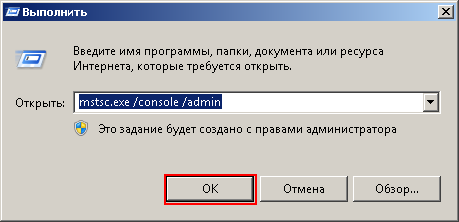
2. In the window that opens, click "Show Options"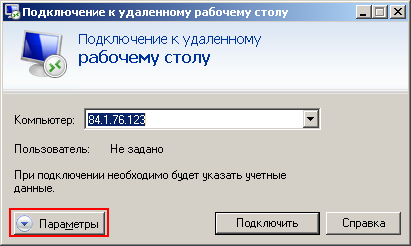
3. Go to the "Local Resources" tab, check "Clipboard" and then click "More..."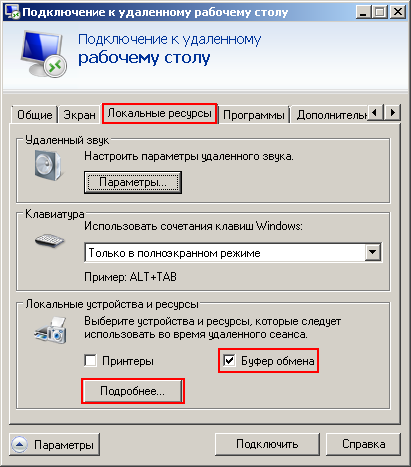
4. Expand the "Drives" list, check all the drives you need access to, then click "OK"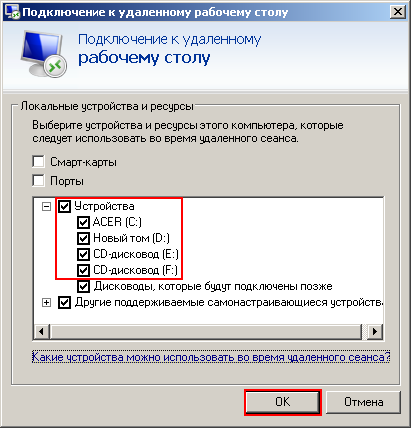
5. Click "Connect" to connect to the remote server.
When you connect to the remote server, a security window "Do you trust this remote connection?" will appear. Check "Don't ask me again for connections to this computer" in it if you don't want it to appear every time you connect to your server.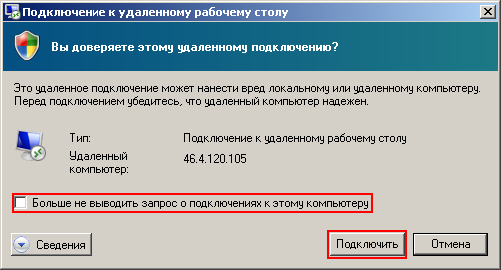
Now, to copy a file to the remote server, simply "copy" it to the clipboard on your computer and "paste" it into the desired location on the remote server. To copy a file from the server, do the opposite: "copy" the file on the server and "paste" it on your computer. To copy and paste files, you can use the context menu (right-click) or the ctrl+c and ctrl+v keyboard shortcuts, respectively. In addition, all your local drives will now be available in "My Computer" on your server!
You only need to configure local resources once: they are saved and used for all RDP connections. If files used to copy fine and then stopped for some reason, check these settings; they may have been reset. If the settings are correct but files still don't copy via the clipboard, make sure your antivirus or firewall is not blocking file copying (disable them completely and try copying the file again).
Please note that when copying files over RDP, the transfer speed may be significantly lower than the speed of your internet connection. You may also experience "freezes" and "slowdowns" while the copy is being prepared (after right-clicking or pressing ctrl + V), the destination folder window may stop responding for a while until the process completes, etc. These are peculiarities of the RDP protocol; at the moment we have no information on what causes this problem or how to fix it! If this problem is severe, occurs all the time or seriously gets in the way of your work, disconnect the local drives and use the alternative file copying methods described below.
Besides the clipboard, you can also use the built-in file transfer tools of RAdmin or an FTP server
See also: What to do if the clipboard used to work fine and then suddenly stopped.
- 245 Users Found This Useful
