





On Windows Server 2008:
1. Make sure the "Virtual Disk" service is running on the server. To do this, run the following commands one after another:
sc config vds start=  auto
net start vds
2. Open "Server Manager" and select "Storage" -> "Disk Management" in the left-hand menu.
3. Right-click "Disk Management" and select "Rescan Disks" in the menu that appears, then "Refresh".
4. Right-click the logical partition you want to extend and select "Extend Volume" in the context menu. Only the last volume, the one adjacent to the unallocated space, can be extended!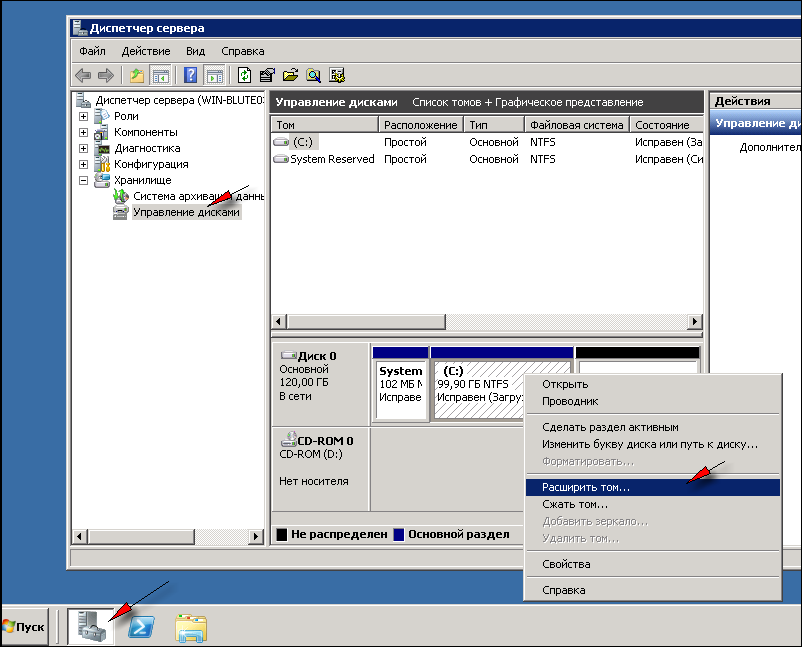
5. Keep clicking "Next" until the wizard is complete: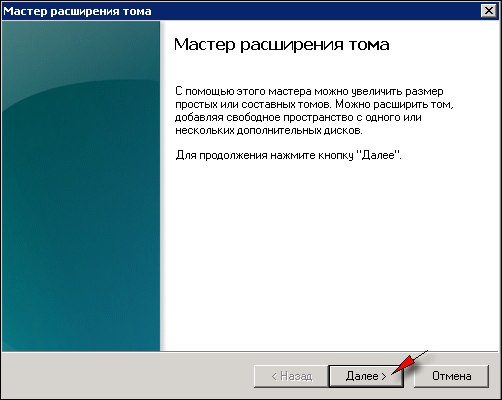
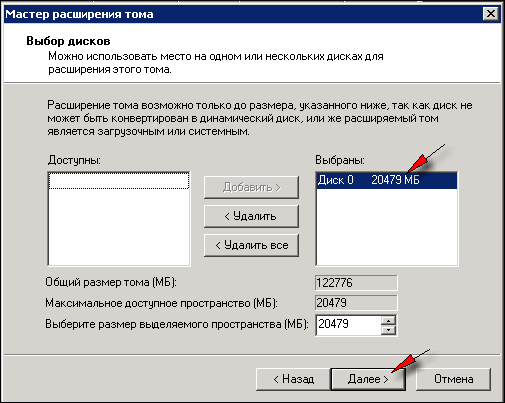
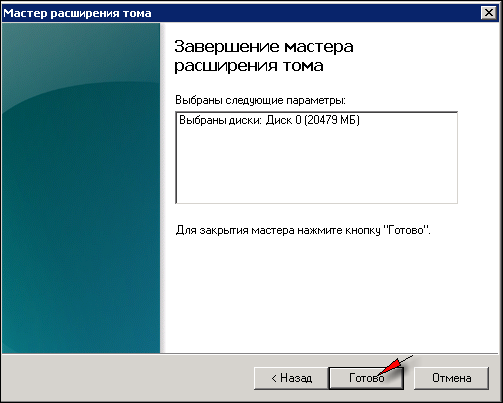
When it finishes, the logical partition will be extended to use all available space.
Note: if you have several logical partitions (for example, C: and D:), only the last partition (the one adjacent to the free space) can be extended this way. To resize other partitions or redistribute space between them, you need to boot the server from a LiveCD such as Reanimator or Gparted and perform the necessary operations from there. If you lack the experience and do not have your own administrator, you can always order this task from our specialists for a small fee.
- 154 Users Found This Useful
