





How to check the load on a Windows VDS
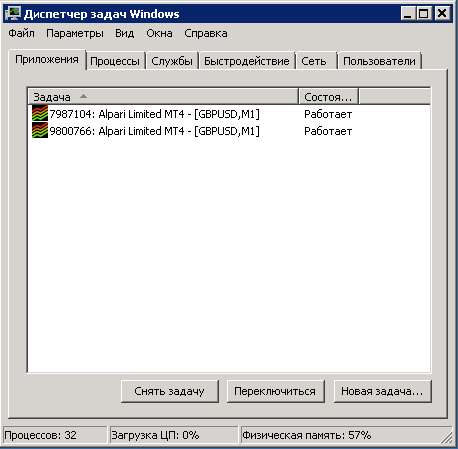
To see the list of running processes, the current CPU load and the amount of used / available memory on the server, start Task Manager:
To view information about the CPU load and RAM usage, switch to the "Performance" tab:
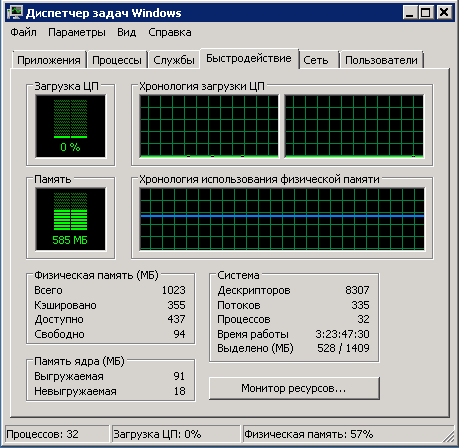
First of all, look at "CPU Usage" (central processing unit, CPU). If the load is above 90% and reaches 100% at peaks, the server is working at the limit of its capacity. If the load stays at 100% for more than 5-10 seconds in a row (see the graphs under "CPU Usage History"; each graph is one logical CPU core), the server is CPU-overloaded and may work unstably, including losing Remote Desktop access, freezing, etc.
The second (and possibly more important) parameter is the amount of used / allocated memory. Unfortunately, memory allocation in Windows is too complex a topic to explain simply and clearly in a nutshell. If you are interested in the details, you can find information on the Internet (here is an example article) or consult specialists you know. For a simplified general assessment, look at the "Physical Memory" value at the very bottom: up to 80% is acceptable; from 80% to 90%, the server is working at its limit and slowdowns are possible; above 90% means a severe RAM shortage, with possible program failures, memory allocation errors and server freezes.
Detailed information about running processes, the CPU load they create and the amount of memory they use can be found on the corresponding "Processes" tab:
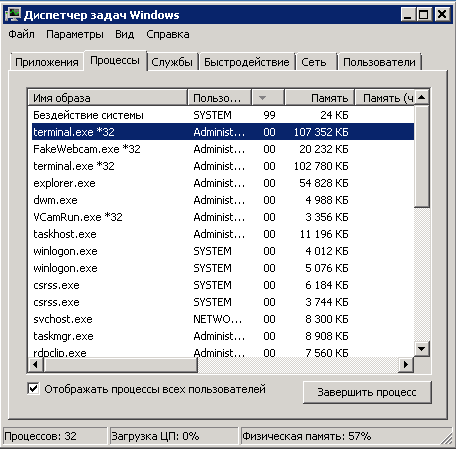
To see all running system processes, select the "Show processes from all users" check box. You can choose the columns with the process information you need in the "View" -> "Select Columns" menu.
The most interesting fields are "CPU" (shows the CPU load in % at a given moment) and the amount of memory used by the process. This lets you determine which of the running processes create the load and use the most memory, and also track how the amount of memory used by a process changes over time (this is especially relevant for MT terminals, which usually keep "growing" in memory).
For a more detailed analysis, you can use "Resource Monitor" (a button on the "Performance" tab) or additional system utilities, for example Process Explorer from Microsoft. These tasks require special knowledge, and describing them is beyond the scope of technical support and this article.
To view information about the CPU load and RAM usage, switch to the "Performance" tab:
First of all, look at "CPU Usage" (central processing unit, CPU). If the load is above 90% and reaches 100% at peaks, the server is working at the limit of its capacity. If the load stays at 100% for more than 5-10 seconds in a row (see the graphs under "CPU Usage History"; each graph is one logical CPU core), the server is CPU-overloaded and may work unstably, including losing Remote Desktop access, freezing, etc.
The second (and possibly more important) parameter is the amount of used / allocated memory. Unfortunately, memory allocation in Windows is too complex a topic to explain simply and clearly in a nutshell. If you are interested in the details, you can find information on the Internet (here is an example article) or consult specialists you know. For a simplified general assessment, look at the "Physical Memory" value at the very bottom: up to 80% is acceptable; from 80% to 90%, the server is working at its limit and slowdowns are possible; above 90% means a severe RAM shortage, with possible program failures, memory allocation errors and server freezes.
Detailed information about running processes, the CPU load they create and the amount of memory they use can be found on the corresponding "Processes" tab:
To see all running system processes, select the "Show processes from all users" check box. You can choose the columns with the process information you need in the "View" -> "Select Columns" menu.
The most interesting fields are "CPU" (shows the CPU load in % at a given moment) and the amount of memory used by the process. This lets you determine which of the running processes create the load and use the most memory, and also track how the amount of memory used by a process changes over time (this is especially relevant for MT terminals, which usually keep "growing" in memory).
For a more detailed analysis, you can use "Resource Monitor" (a button on the "Performance" tab) or additional system utilities, for example Process Explorer from Microsoft. These tasks require special knowledge, and describing them is beyond the scope of technical support and this article.
- 208 Users Found This Useful
Related Articles
How do I make programs start automatically on the server?
Let's look at how a server starts up, so that what follows is easier to understand:
1) you turn the server's "power" on or restart it using the "reset" function2) the server powers on and the OS boots!--> at this point the server does not...
No more than 2 people can connect to the server via Remote Desktop at the same time
To allow more than two people to work on the server at the same time, you need to install a terminal server on it.
Questions about antivirus protection and firewall on the server
Q: What antivirus protection is installed on the server?
A: An antivirus is not part of the operating system and, accordingly, is not included in its distribution.
Q: Do I need to install additional software (antivirus, firewall, etc.) to...
How do I enable sound when working via Remote Desktop?
If you want sound to work when connecting via Remote Desktop (i.e. sound played on the server is transferred to your computer), first of all you need to enable the corresponding option in the RDP client settings. To do this, after launching the...
What other ways are there to copy files to my server?
Besides copying files via the clipboard, you can use other file transfer methods. For example, Radmin or TeamViewer. If you want to use these tools, you need to install the corresponding software on the server. Additional information, instructions...
