





To recover a forgotten or lost password yourself, you can use various specialized software. You can find detailed information about it and various instructions using search engines.
The simplest and fastest method, using the KON-BOOT utility, takes just a few minutes:
Step 1. Go to the server control panel and mount the ISO image "Tools \ Kon-boot".
Step 2. Open the VNC console and initiate a reboot of your VDS.
Step 3. To boot from the ISO, press F12 right after the message "Press F12 for boot menu" appears, then enter the number of the DVD/CD option (usually 1)! 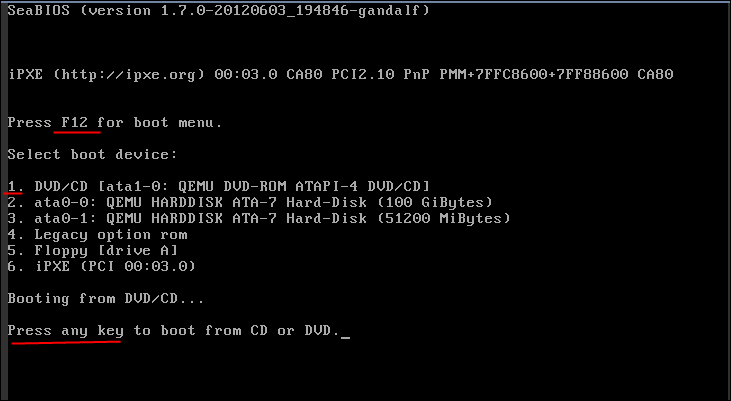
Step 4. The KON-BOOT logo will appear for a few seconds, and then Windows will boot as usual.
Step 5. Wait for the OS to finish booting and do one of the following, depending on the OS installed on the server:
Step 5.1 If you have Windows Server 2008, select a user and enter any password to log in as that user. Important: you must log in through the VNC console, not via Remote Desktop!
Step 5.2 If you have Windows Server 2012 or later, press SHIFT 5–7 times in a row on the login screen in the VNC console. A command prompt with system privileges will open on the server.
Step 6. Set a new password with the command NET USER username new_password. For example, to set the new password bvfGty6vcS for the user administrator, run the command NET USER administrator bvfGty6vcS
If you do not change the password, after the server reboots it will remain the same as it was before booting from KON-BOOT.
You can read more about changing the password in this guide
Step 7. Be sure to unmount the ISO image in the VDS control panel and restart the server (via Start -> Shut down -> Restart). Once the server has restarted, you can connect via Remote Desktop with the new password (the one you set in step 5).
Note: If something does not work or goes wrong, you can submit a paid password recovery request to technical support
Alternative guide to resetting the password with Elcomsoft software
- 143 Users Found This Useful
