




Graceful software reboot
This is a server restart performed via the OS. It occurs when you execute "Start -> Shut down -> Restart" on the server or use other software methods (for example, answering YES to a "restart required" prompt). It ensures a proper shutdown, a "clean" stop of the file system, etc. It is used, for example, after installing software or updates so that changes to the system configuration take effect, etc.
If the server is accessible via Remote Desktop (RDP):
The reboot is performed just like restarting your own computer — via the Start menu -> selecting the Power / Shut down icon -> Restart.
Important: only a user with administrator privileges (administrator, tsadmin, etc.) can reboot the server. Users without administrator privileges (tsuser1, tsuser2, etc.) cannot perform a reboot from "inside" the OS.
In Windows Server 2008 R2: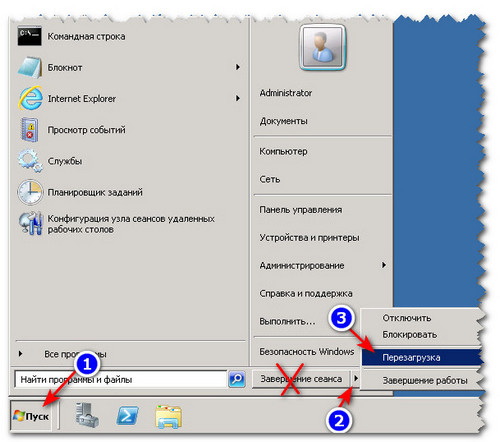
In Windows Server 2012 R2, the shutdown / restart option appears in the top right corner of the screen after clicking the Start menu: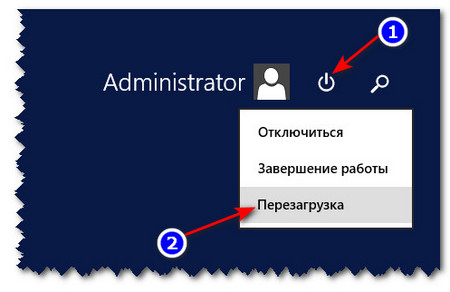
In Windows Server 2016: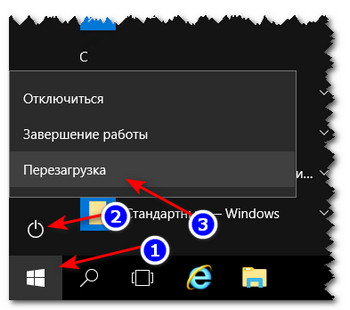
If the server is not accessible via Remote Desktop (RDP):
you need to restart the server via the VNC console. To do this:
1. Open the VNC console.
2. Initiate the reboot:
For Linux OS: click the "Send AltCtrlDel" button in the top right corner of the VNC window.
For Windows OS: click the arrow next to the red power button in the bottom right corner of the screen: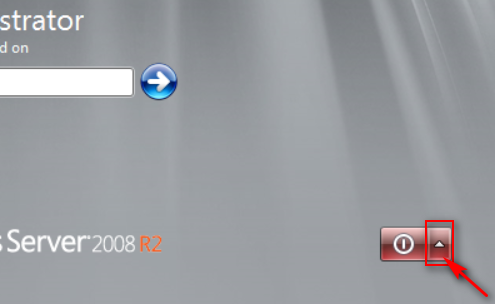
3. Select "Restart" from the menu that appears:
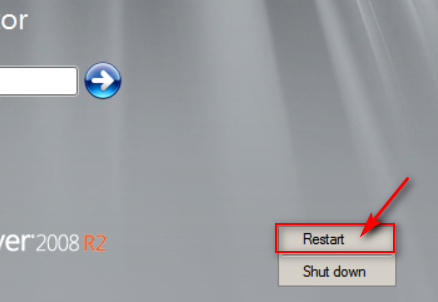
For Windows Server 2012 / 2016 / 2019, you may first need to click the "Send Alt+Ctrl+Del" button at the top of the screen and then initiate the reboot in the same way: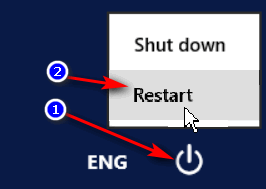
4. Confirm the restart if prompted.
5. Monitor the reboot process.
If you are using a non-standard or custom-installed OS and such a button is not available, you need to log in to the system (enter the administrator password) and initiate a standard reboot via "Start" -> "Shut down" -> "Restart" (see the beginning of the instructions).
Attention: for keypresses to be correctly transmitted to the server, your computer's keyboard layout must be set to English!
Hardware RESET
Server reset (hardware reset) is a server restart performed by briefly cutting the power. For a VDS, this action is completely equivalent to pressing the reset button on your own computer. When using this reboot method, the server will be restarted regardless of whether it is accessible, frozen, unresponsive, etc. However, this may damage the file system, result in the loss of open documents, etc. Therefore, you should use a reset only in extreme cases when a VNC reboot is not possible!
To perform a hardware reset:
1. Log in to the VDS control panel.
2. In the "Power" section, click the button and select "Restart" from the menu that appears, then confirm your agreement to reboot.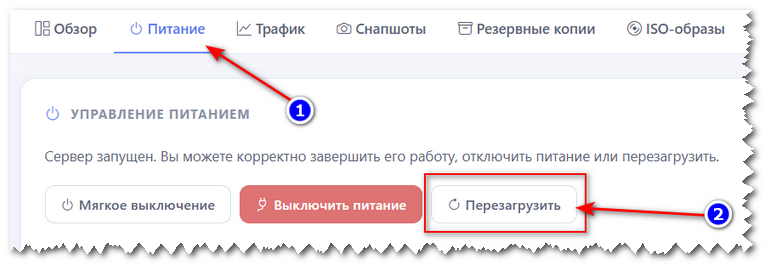
Within a minute, the server will be rebooted, and in about 2-4 minutes, if the OS and file system are fine, it should become accessible.
Access via Remote Desktop may become available a few minutes after the Windows OS boot is complete.
Attention:
1. Do not attempt to reboot the server again immediately after the first one, without waiting for the OS to boot. If you do this, your Windows will most likely fail to boot on its own because it will enter recovery mode! Use the VNC console to monitor the boot process!
2. Before rebooting your server, connect to it via VNC and make sure that a reboot is genuinely required and cannot be avoided.
- 187 Users Found This Useful