





How to boot your server into Linux Rescue
Linux Rescue is a special operating system based on Debian Linux with a modified kernel. It is booted on your VDS over the network (via iPXE network boot) and gives you access to the server's disks so you can perform various operations. Rescue includes many useful tools for a wide range of system administration tasks and is extremely helpful when the operating system installed on the VDS is damaged, does not boot, or cannot be used for other reasons. In that case, by booting the server into Linux Rescue you can take a number of steps to fix the problems. Of course, to use it you need the relevant Linux system administration knowledge and skills, or an administrator you can turn to for help if needed.
Step-by-step guide to booting a VDS into Linux Rescue:
1. Open the server's VNC console (in the browser from the VDS control panel or via TightVNC)
2. Initiate a VDS reboot (using the alt+ctrl+del button in the console or another way)
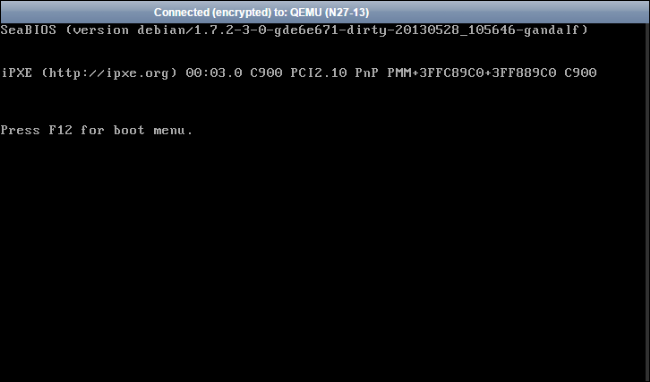
3. At the very beginning of the VDS boot, press F12 to enter the boot menu
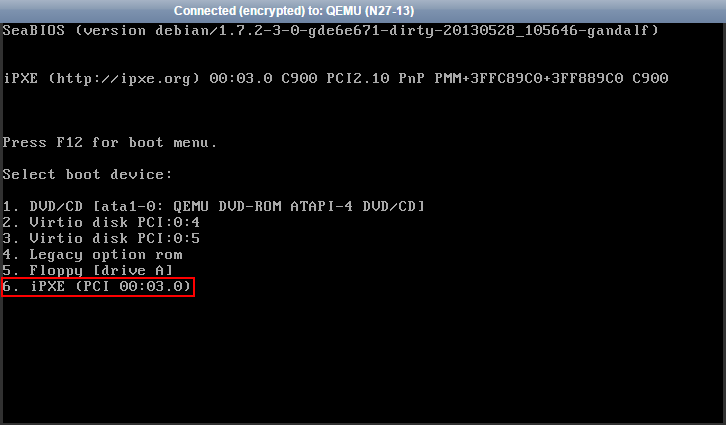
4. Select iPXE from the list by pressing the corresponding number (usually 5 or 6)
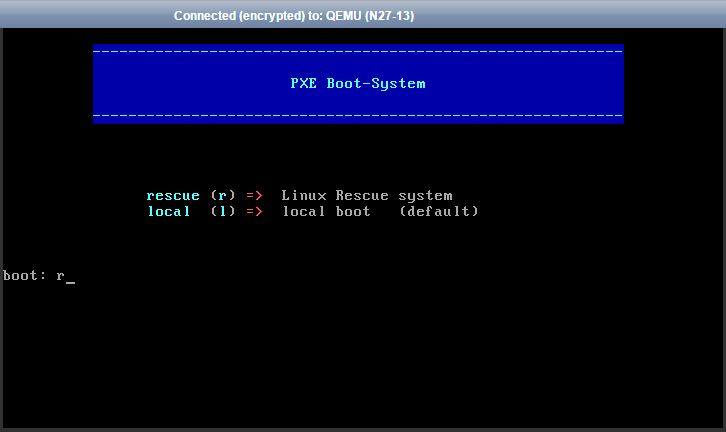
5. In the PXE menu that appears, type R and press Enter
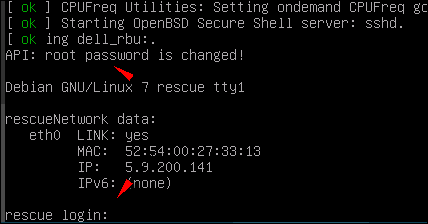
6. Wait until the Linux Rescue system finishes booting and the login prompt appears:
Important:
1) To log in to Linux Rescue, we recommend connecting via SSH to the main IP of your VDS. Please note: use your server's IP, not the one used for VNC!
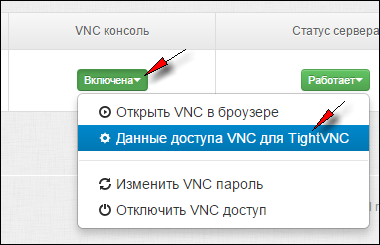
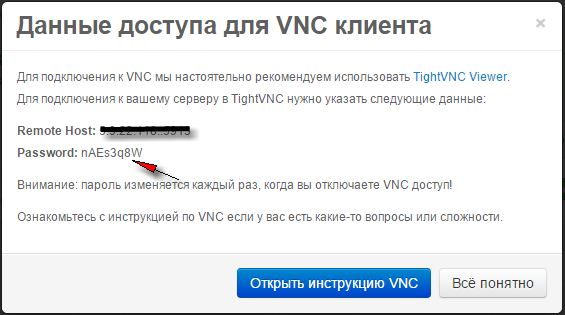
2) As the root password, use the VNC console password that was set at the time Rescue was booted (you can find it in the VDS control panel under VNC console -> access details for Tight VNC):
Once booted, you can use Linux Rescue on the server for as long as you need. When you are done, reboot the server and it will boot from the hard disk as usual.
Step-by-step guide to booting a VDS into Linux Rescue:
1. Open the server's VNC console (in the browser from the VDS control panel or via TightVNC)
2. Initiate a VDS reboot (using the alt+ctrl+del button in the console or another way)
3. At the very beginning of the VDS boot, press F12 to enter the boot menu
4. Select iPXE from the list by pressing the corresponding number (usually 5 or 6)
5. In the PXE menu that appears, type R and press Enter
6. Wait until the Linux Rescue system finishes booting and the login prompt appears:
Important:
1) To log in to Linux Rescue, we recommend connecting via SSH to the main IP of your VDS. Please note: use your server's IP, not the one used for VNC!
2) As the root password, use the VNC console password that was set at the time Rescue was booted (you can find it in the VDS control panel under VNC console -> access details for Tight VNC):
Once booted, you can use Linux Rescue on the server for as long as you need. When you are done, reboot the server and it will boot from the hard disk as usual.
- 139 Users Found This Useful
Related Articles
What is the VNC console and why do I need it?
We provide all our clients with access to the server console via the VNC protocol.
In fact, it is the same as a KVMoIP connection for dedicated servers: with the VNC console you can see what is happening on your virtual machine's screen and...
How do I enable VNC access to my server?
To enable the VNC console (what it is and why you need it), do the following:1. Log in to the VDS control panel 2. Make sure the server is powered on (its status is "Running"). If the server is stopped, start it:
3. If VNC access is disabled,...
What is server reinstallation and how does it work?
What "reinstallation" is and why you may need it:
It is a process in which your server's current disk is formatted and a new OS image is installed on it. So if "everything is broken", "nothing works", you just want to "start over" or you need a...
VNC console: questions and answers
Q: What is the VNC console? What is it for?
Q: How do I enable VNC access to my server?
Q: How do I send ALT+CTRL+DEL to the server?
A: Use the special button at the top of the VNC client:
Q: I can't enter my password: I press the...
How to power on (start) a VDS
1. Log in to the VDS control panel
2. Click the "Server Status" button and select "Start" from the menu that appears.
In a few minutes the server will boot and you can continue working with it. If needed, use the VNC console to monitor the...
