





Normal software reboot
This is a restart of the server performed by the OS itself. It happens when you click "Start -> Shut down -> Restart" on the server or use other software means (for example, answer YES to a "restart required" prompt). It ensures a clean shutdown, a "clean" unmount of the file system, etc. It is used, for example, after installing software or updates so that system configuration changes take effect.
If the server is accessible via Remote Desktop (RDP):
Reboot it the same way you reboot your own computer: Start menu -> Power / Shut down icon -> Restart
Important: only a user with administrator rights (administrator, tsadmin, etc.) can restart the server. Users without administrator rights (tsuser1, tsuser2, etc.) cannot restart it from "inside" the OS.
In Windows Server 2008 R2: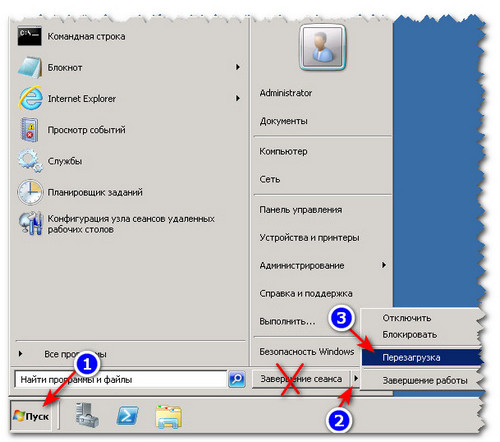
In Windows Server 2012 R2 the shut down / restart option appears in the upper right corner of the screen after you open the Start menu: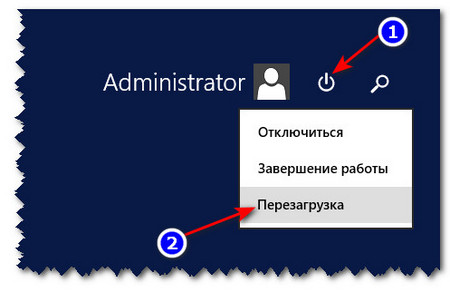
In Windows Server 2016: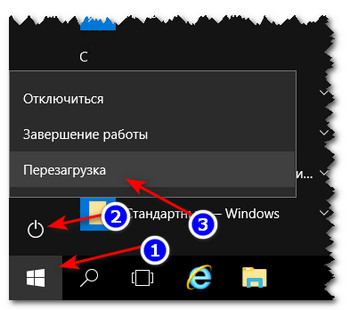
If the server is not accessible via Remote Desktop (RDP):
restart (reboot) the server through the VNC console. To do this:
1. Open the VNC console
2. Initiate the reboot:
For Linux: click the "Send AltCtrlDel" button in the upper right corner of the VNC window.
For Windows: click the arrow next to the red power button in the lower right corner of the screen: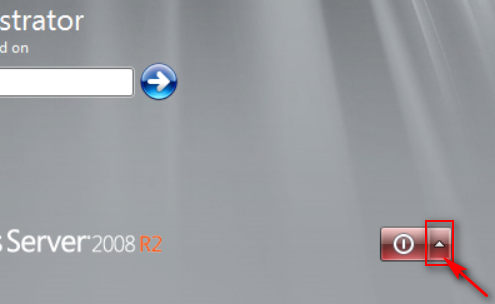
3. Select "Restart" in the menu that appears:
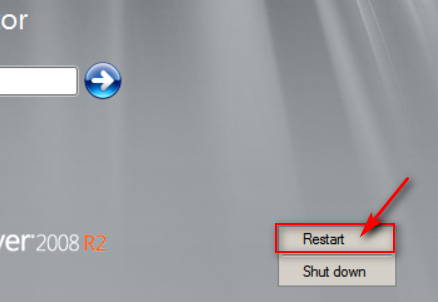
On Windows Server 2012 / 2016 / 2019 you may first need to click the "Send Alt+Ctrl+Del" button at the top of the screen and then initiate the reboot in the same way: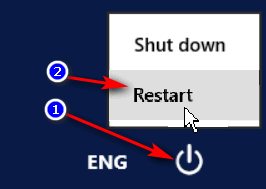
4. Confirm the restart if prompted
5. Monitor the reboot process
If you have a non-standard or self-installed OS and there is no such button, log in (enter the administrator password) and initiate the reboot the normal way, via "Start" -> "Shut down" -> "Restart" (see the beginning of this guide)
Note: for keystrokes to be passed to the server correctly, the English keyboard layout must be enabled on your computer!
Hardware reboot (Hardware RESET)
A server reset (hardware reboot, or hardware reset) restarts the server by briefly cutting its power. For a VDS this is exactly the same as pressing the reset button on your own computer. With this method the server will be rebooted in any case (whether it is accessible or not, frozen, unresponsive, etc.). However, this may damage the file system, lose open documents, etc. Therefore use reset only as a last resort, when there is no way to reboot via VNC)!
To perform a hardware reboot:
1. Log in to the VDS control panel
2. In the "Server Status" section, click the button, select "Reboot" from the menu that appears, and then confirm the reboot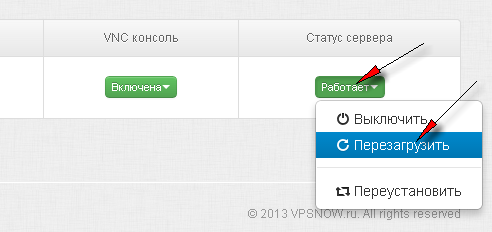
The server will be rebooted within a minute, and in about 3-4 minutes, if the OS and file system are fine, it should become available.
Once again, please note: Remote Desktop access becomes available only a few minutes after Windows has finished booting!
Warning:
1. Never try to reboot the server a second time just because you did not wait for it to boot after the first reset! If you do, your Windows will most likely no longer be able to boot on its own, because it will start in recovery mode! Use the VNC console to monitor the boot process!
2. Before rebooting your server, connect to it via VNC and make sure that a reboot is really needed and cannot be avoided.
- 187 Users Found This Useful
