





Changing virtual machine settings
To manage the virtual machine settings, select the corresponding section in the main menu of the VDS control panel:

Settings can only be changed while the virtual machine is stopped (powered off).
Important: shut the server down using the installed operating system (for example, via "Start -> Shut Down" in Windows or "shutdown -h 0" in Linux)!
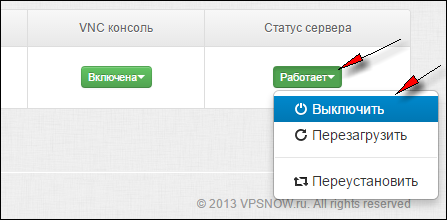
Only if there is no OS installed on the server, or if its operability / data integrity does not matter to you (for example, you are planning to reinstall the OS), or if the server is booted from a LiveCD, may you power it off (stop it) directly from the control panel:
Once the VDS is in the "stopped" state, you can change the following virtual machine settings:
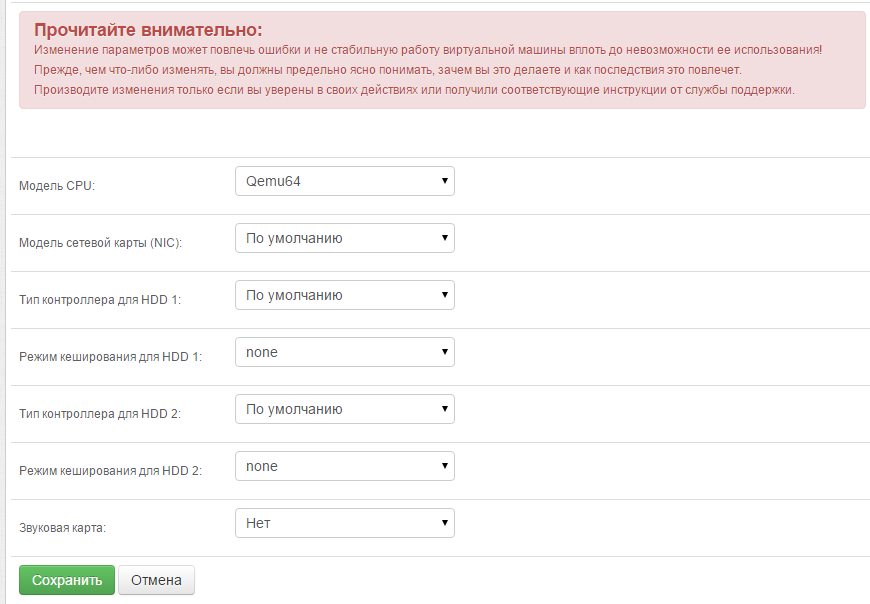
After changing the settings and clicking "Save", start the virtual machine with the new settings.
Below is a brief description of the settings, and we remind you once again: Do not make any changes unless you know exactly what you are doing and why!
CPU model:
we strongly advise against changing it unless instructed by technical support.
Network adapter model:
Realtek 8139 is the "default" network adapter. It is supported (drivers are available) both in Windows and in all Linux distributions. It works reliably, but not as fast as it could. We recommend this model for older operating systems that do not support (have no drivers for) Intel Pro 1000 adapters, or if you do not know how to install device drivers yourself.
Intel Pro 1000 is a more advanced network adapter model (runs at 1Gbps); it may require installing drivers in operating systems you installed manually. You can find the drivers by attaching to the server Intel-pro-nic-drivers.iso We recommend using this model only if you CANNOT install the Virtio drivers.
Virtio is a special network adapter model that provides maximum network performance and stability. It requires drivers to be installed (for both Windows and Linux). Our OS templates (including Linux systems installed via installimage and the rescue system) already include the drivers. For a Windows OS you installed yourself, you can find the drivers by attaching the ISO image "Virtio drivers for Windows" to the server, or here / here . In Linux, support is usually built into the kernel; if you run into difficulties, look for information online, for example here. We recommend using this network adapter model.
HDD 1 / HDD 2 controller type:
A very important setting. By default, the SCSI controller is used; it is supported by most operating systems and provides acceptable I/O. IDE is supported by any OS but is the slowest. Virtio is the fastest, but requires drivers to be installed for Windows and for some Linux distributions (if Virtio support is not built into the kernel). Virtio support is already included in our OS templates, so we recommend this model for maximum disk performance of the virtual machine.
IMPORTANT: If your OS or boot CD/DVD (including REANIMATOR, ACRONIS, etc.) does not support Virtio, that OS / installer / disc will "not see" the hard disks of the virtual machine. In this case, switch the mode to "default" (or SCSI) to carry out the work or install your OS!
If your server has two disks (do not confuse them with logical partitions!), HDD1 refers to the system (SSD) disk and HDD2 to the second (SATA) disk. As a rule, both should have the same values.
HDD1 / HDD2 cache mode:
By default, the none mode is used, which we consider optimal in terms of performance / data safety. We do not recommend changing these settings unless you understand how they work. You can read more about cache modes in the QEMU KVM documentation.
Sound card:
Lets you add a sound card to the virtual machine hardware, which some programs require. For Windows Server 2008 / Windows 7 and later, we recommend Intel HD Audio. More about sound setup.
Settings can only be changed while the virtual machine is stopped (powered off).
Important: shut the server down using the installed operating system (for example, via "Start -> Shut Down" in Windows or "shutdown -h 0" in Linux)!
Only if there is no OS installed on the server, or if its operability / data integrity does not matter to you (for example, you are planning to reinstall the OS), or if the server is booted from a LiveCD, may you power it off (stop it) directly from the control panel:
Once the VDS is in the "stopped" state, you can change the following virtual machine settings:
After changing the settings and clicking "Save", start the virtual machine with the new settings.
Below is a brief description of the settings, and we remind you once again: Do not make any changes unless you know exactly what you are doing and why!
CPU model:
we strongly advise against changing it unless instructed by technical support.
Network adapter model:
Realtek 8139 is the "default" network adapter. It is supported (drivers are available) both in Windows and in all Linux distributions. It works reliably, but not as fast as it could. We recommend this model for older operating systems that do not support (have no drivers for) Intel Pro 1000 adapters, or if you do not know how to install device drivers yourself.
Intel Pro 1000 is a more advanced network adapter model (runs at 1Gbps); it may require installing drivers in operating systems you installed manually. You can find the drivers by attaching to the server Intel-pro-nic-drivers.iso We recommend using this model only if you CANNOT install the Virtio drivers.
Virtio is a special network adapter model that provides maximum network performance and stability. It requires drivers to be installed (for both Windows and Linux). Our OS templates (including Linux systems installed via installimage and the rescue system) already include the drivers. For a Windows OS you installed yourself, you can find the drivers by attaching the ISO image "Virtio drivers for Windows" to the server, or here / here . In Linux, support is usually built into the kernel; if you run into difficulties, look for information online, for example here. We recommend using this network adapter model.
HDD 1 / HDD 2 controller type:
A very important setting. By default, the SCSI controller is used; it is supported by most operating systems and provides acceptable I/O. IDE is supported by any OS but is the slowest. Virtio is the fastest, but requires drivers to be installed for Windows and for some Linux distributions (if Virtio support is not built into the kernel). Virtio support is already included in our OS templates, so we recommend this model for maximum disk performance of the virtual machine.
IMPORTANT: If your OS or boot CD/DVD (including REANIMATOR, ACRONIS, etc.) does not support Virtio, that OS / installer / disc will "not see" the hard disks of the virtual machine. In this case, switch the mode to "default" (or SCSI) to carry out the work or install your OS!
If your server has two disks (do not confuse them with logical partitions!), HDD1 refers to the system (SSD) disk and HDD2 to the second (SATA) disk. As a rule, both should have the same values.
HDD1 / HDD2 cache mode:
By default, the none mode is used, which we consider optimal in terms of performance / data safety. We do not recommend changing these settings unless you understand how they work. You can read more about cache modes in the QEMU KVM documentation.
Sound card:
Lets you add a sound card to the virtual machine hardware, which some programs require. For Windows Server 2008 / Windows 7 and later, we recommend Intel HD Audio. More about sound setup.
- 243 Users Found This Useful
Related Articles
What is the VNC console and why do I need it?
We provide all our clients with access to the server console via the VNC protocol.
In fact, it is the same as a KVMoIP connection for dedicated servers: with the VNC console you can see what is happening on your virtual machine's screen and...
How do I enable VNC access to my server?
To enable the VNC console (what it is and why you need it), do the following:1. Log in to the VDS control panel 2. Make sure the server is powered on (its status is "Running"). If the server is stopped, start it:
3. If VNC access is disabled,...
What is server reinstallation and how does it work?
What "reinstallation" is and why you may need it:
It is a process in which your server's current disk is formatted and a new OS image is installed on it. So if "everything is broken", "nothing works", you just want to "start over" or you need a...
VNC console: questions and answers
Q: What is the VNC console? What is it for?
Q: How do I enable VNC access to my server?
Q: How do I send ALT+CTRL+DEL to the server?
A: Use the special button at the top of the VNC client:
Q: I can't enter my password: I press the...
How to power on (start) a VDS
1. Log in to the VDS control panel
2. Click the "Server Status" button and select "Start" from the menu that appears.
In a few minutes the server will boot and you can continue working with it. If needed, use the VNC console to monitor the...
